Search Tips
Licensing
Where are licenses needed?
While using Nuke Stage, each RenderNode will need a license. RenderNodes fetch floating licenses from a license server when they run.
Note: You don't need a license to open and use Nuke Stage Editor, Nuke Stage's UI application.
This license server can run on the same machine as the one you’re running your Nuke Stage Editor on, or a different one if needed. It needs to be a machine that every RenderNode has network access to.
Each RenderNode will fetch a license at runtime, and return the license when it is closed.
How to get a license
If you don’t have a license and you are interested in putting Nuke Stage to work, go to www.foundry.com/products/nuke-stage to register your interest.
Nuke Stage uses local RLM licenses so you will need to install the Foundry Licensing Utility (FLU) in order to get your license. You can install the FLU here: Foundry Licensing Tools.
Note: You only need to install the FLU on the machine running the license server. It doesn't need to be installed on RenderNodes.
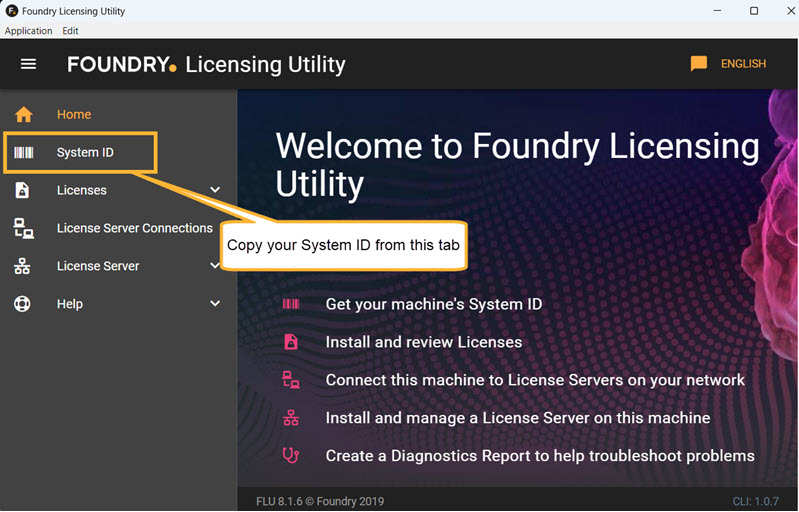
| 1. | Within the FLU application, locate your System ID and send it to the contact details found in the onboarding email. You will then be sent your generated license key. |
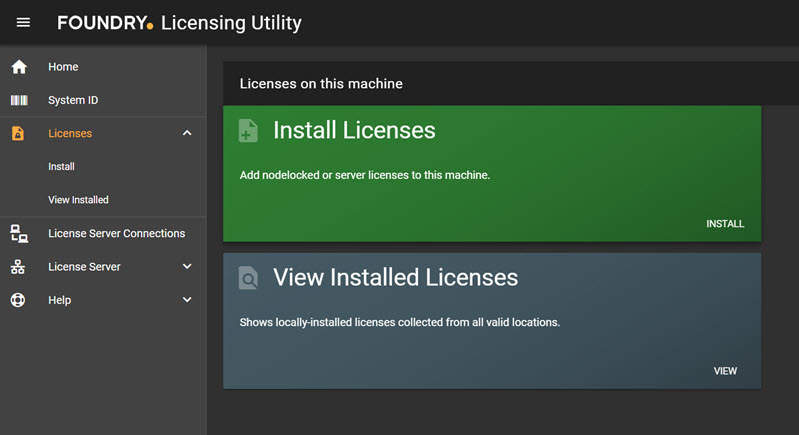
| 2. | Once you have your generated license key, you can then use the FLU to install your license automatically. To do this, go to Licenses > Install. |
| 3. | Either attach the license file that you have been provided, or simply copy and paste the license into the text field. |
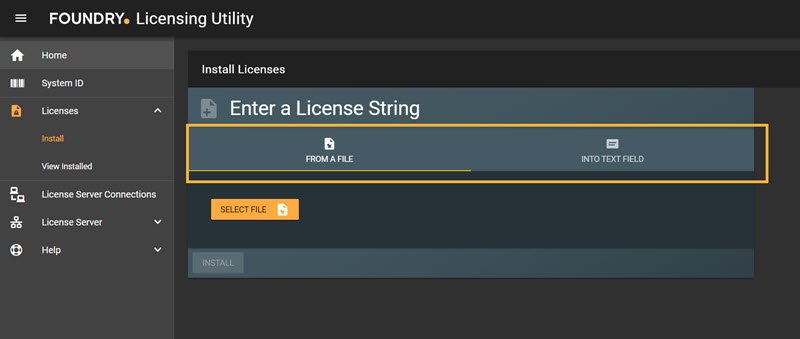
| 4. | Click Install. |
| 5. | If the machine has not run a license server before, follow the additional instructions to install and run a license server within FLU. |
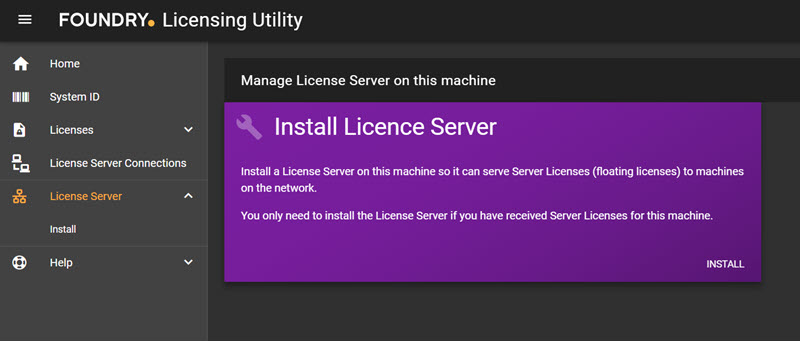
| 6. | If there was already a license server on the machine, please restart the license server from the License Server > Control section to enable the new license. |
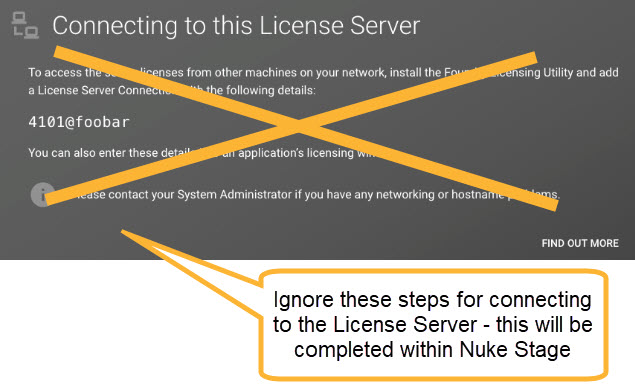
| 7. | Once you have installed the License server, you can close FLU and continue setting up the License server within Nuke Stage, which is covered in the next section. Note that you can ignore the Connecting to this License Server panel in the FLU. |
Setting Up a License Server in Nuke Stage
Now that License Server has been installed, you can set your license server location in Nuke Stage Editor.
| 1. | Go to Nuke Stage User Preferences at Edit > Preferences. |
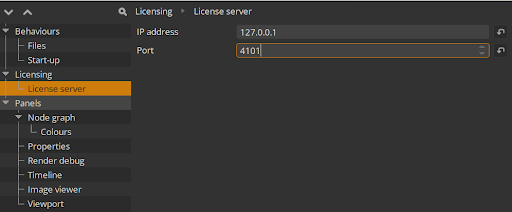
| 2. | Within the preferences, go to Licensing > License server. Here you can define an IP address and port for the server. |
Note: The default settings (127.0.0.1:4101) are set up for a server located on the same machine as the Nuke Stage Editor. If the server is located on a different machine, these will need to be adjusted.
If a RenderNode successfully obtains a license from the server, you will receive a success message. This will appear in the Log Panel and in the Nuke Stage Editor Notifications Panel. The current license status of each RenderNode will also appear in the Network panel.
If the RenderNode fails to obtain a license, it will show a message similar to this on the RenderNode itself:
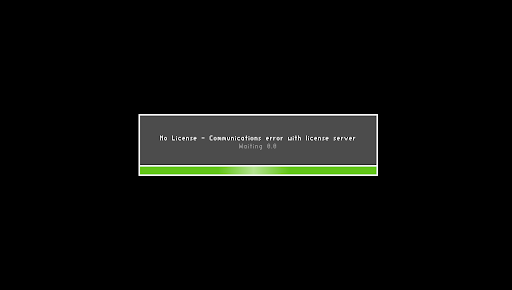
If you receive this message:
• Ensure the RenderNode can communicate with the license server.
• Check that a valid license server is installed on the defined machine.
• Check you have sufficient floating licenses for each RenderNode.
• Ensure a firewall isn't preventing communication over the network. You may need a firewall exemption for the RenderNode application.
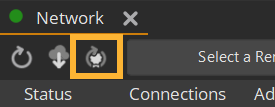
To force RenderNodes without a license to try to fetch one again, press this button in the Network panel:
Note: If a RenderNode gets disconnected from a license server after obtaining a valid license, it will continue normal operation for 15 minutes. After this, it will stop rendering.
During this 15 minute period, there will be notifications in the editor to alert you to the issue. It will also notify you of how much time remains to resolve any disconnection issues.