Search Tips
Quickstart Guide: Hardware Setup Checklist
The following document can be used to support setting up Nuke Stage. It outlines checks you can complete to prevent any issues in running Nuke Stage. The full hardware requirements for Nuke stage can be found at the User Guide page Hardware.
Nuke Stage Installation Checks
When installing Nuke Stage, ensure that:
• Nuke Stage is installed on all machines in the setup, whether they are RenderNodes, Relay, or control machines.
• All machines must be on Windows 10 or 11.
• For setups with multiple render nodes, NVIDIA quadro sync cards are needed for all render nodes, along with a compatible GPU. We recommend a powerful GPU, such as the A6000, for the best performance.
Note: Read more about installation at Quickstart Guide: Installing Nuke Stage and the User Guide page Installing on Windows
Network Setup Checks
To avoid any network issues, ensure that:
• All machines have static IPs.
• All machines have Nuke Stage installed on the same drive at the same path.
• All machines have the content on the same drive at the same path.
• Firewalls are not blocking any communication on the network.
Note: Read more about Network set up at Quickstart Guide: Launching Nuke Stageand the User Guide page Network Setup
RenderNode Sync Checks
To ensure accurate sync between RenderNodes, check that:
• From Nuke Stage, Windows are set to run in borderless within the Project Graph Outputs Controls.
• From Nuke Stage, the Output resolution should be the entire resolution of the display. This means that the window can run in borderless full screen. For where a subsection of the full display resolution is needed for an output, this can be set in the Output Mapping Controls.
• Drivers for both GPU and Quadro Sync are up to date.
• Ensure EDID (extended display identification data) is set up correctly. For more information on this, go to Synchronization.
• Genlock is connected to the NVIDIA quadro sync cards on each RenderNode.
• NVIDIA sync settings in Windows are correct on each RenderNode according to the NVIDIA documentation. Each should show that the vertical sync is set to 3D Application controlled and the framelock sync pulse is present, as below.
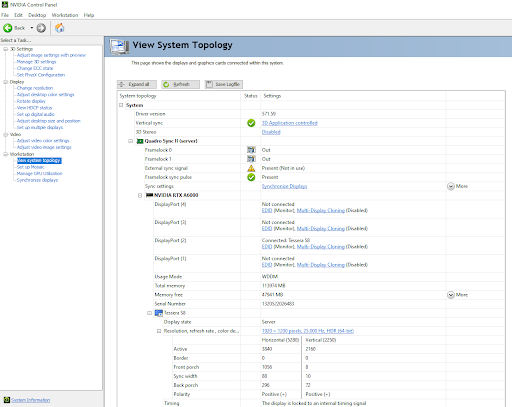
Note: For validating Sync in Nuke Stage you can use the RenderNode Sync debug mode. See Debug Views.
HDR Playback Checks
For playback of HDR content: ensure that:
• Nuke Stage has HDR mode enabled for each Output. Read more at Outputs Controls
• Windows is in HDR mode.
• Any processor in use has HDR mode enabled and is reading HDR values from the render nodes.