Search Tips
Quickstart Guide: Nuke Stage UI Tour
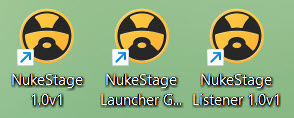
When you install Nuke Stage, it will automatically create three shortcuts on your machine. These make up the three components used to run Nuke Stage.
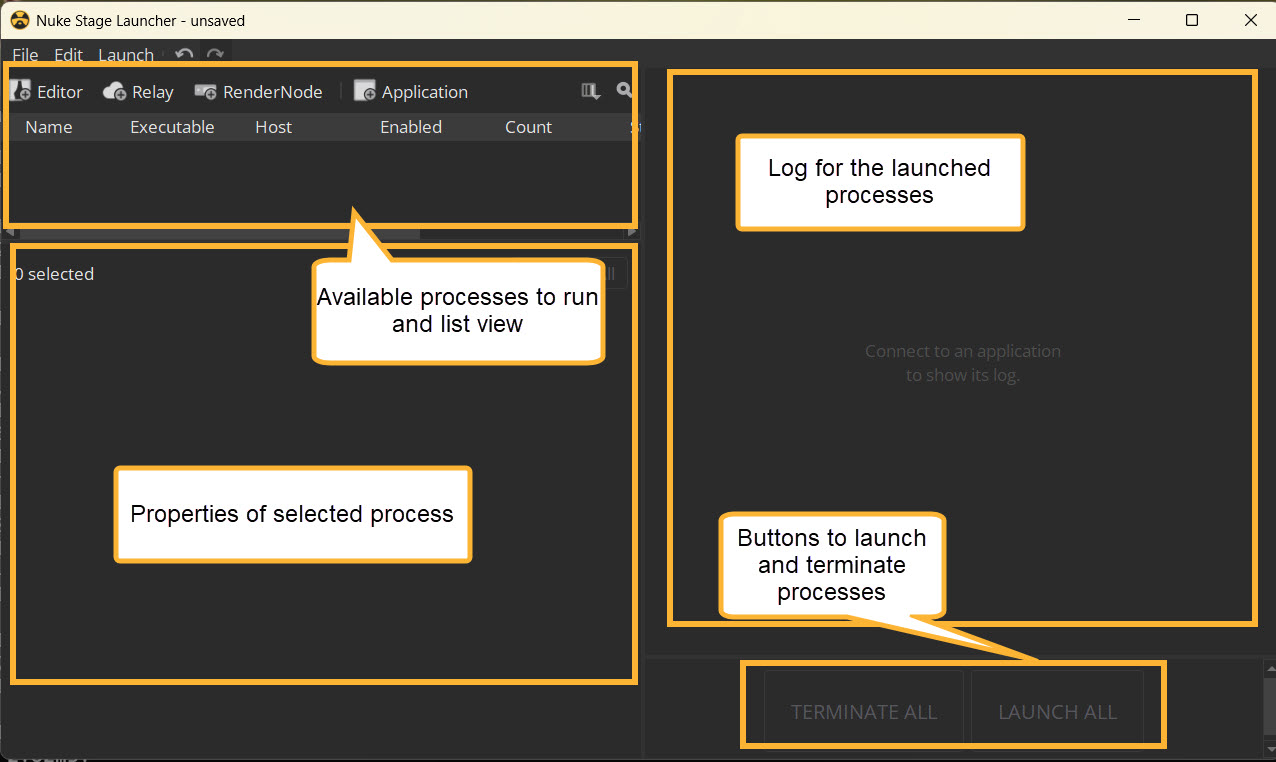
• NukeStage Launcher GUI - The Launcher enables you to define where processes run. It can control the launching of processes across a larger stage.
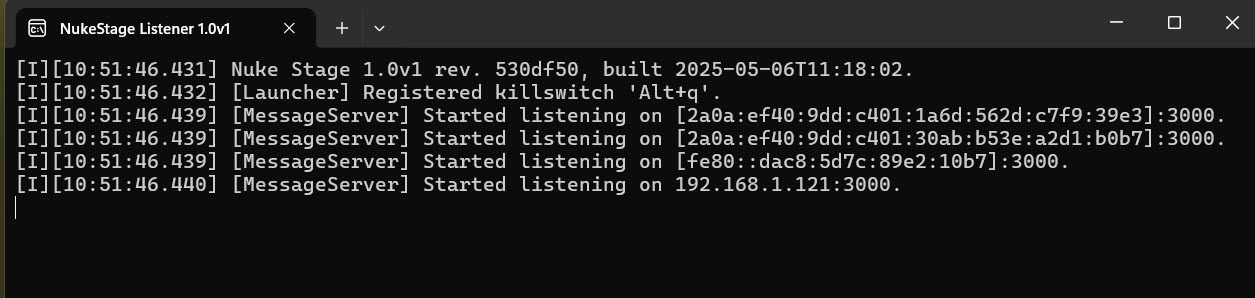
• NukeStage Listener - opening this runs the listener on all RenderNodes. It gives you Information as well as Successes, Warning and Errors on processes.
Note: You can install the Listener as a start up service from the installer, so it runs automatically. Find out more at Launching Nuke Stage
If Render Nodes can't be seen or launched by the Editor:
• Ensure the listener is running.
• If it's not, manually shutdown the listener process in the task manager, and restart it via the desktop shortcut.
• If you are still running into issues after these actions, contact Foundry Support.
• NukeStage - opening this short cut will open Nuke Stage Editor.
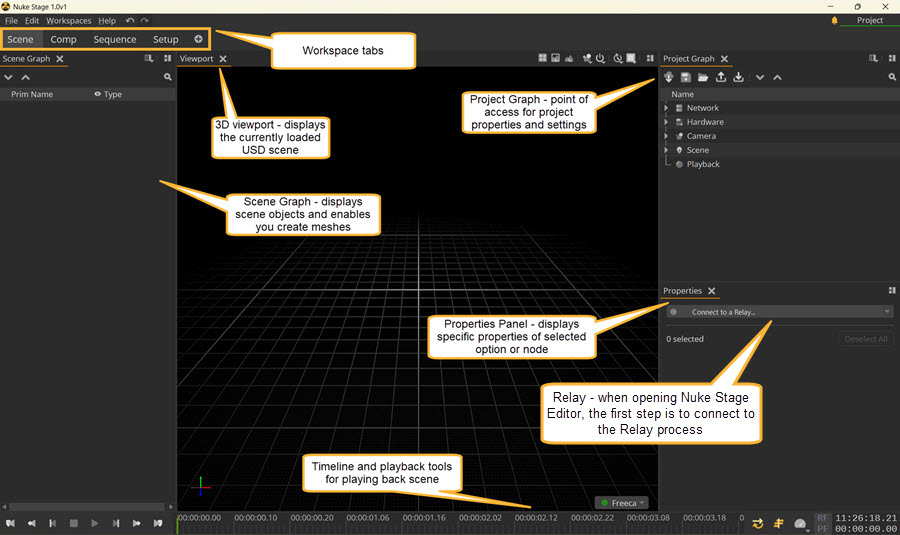
This image displays the default layout of the Nuke Stage Editor, but the UI is fully customizable.
The Nuke Stage Editor is the Nuke Stage UI where you open, edit and play your USD scene.
To find out more about the different features of the Nuke Stage Editor, go to Using Nuke Stage Editor.
Now everything is installed, the next step is setting up your License. Go to the next chapter Quickstart Guide: Getting and Setting up a License.